Here’s my build of AOSP (Android 16) for Raspberry Pi 5, Pi 500, and Compute Module 5. It’s for advanced users only. Pi 5 model with at least 2GB of RAM is required to run this build.
Important! Raspberry Pi hardware specific implementation in this build is based on source code released on my Raspberry Vanilla project but this build offers various additional features and enhancements. This image includes parts that are licensed under non-commercial license (Creative Commons Attribution-NonCommercial-ShareAlike 4.0 International). You may use this build freely in personal/educational/etc use. Commercial use is not allowed with this build! You can contact me by email to discuss creating customized Android builds for commercial purposes.
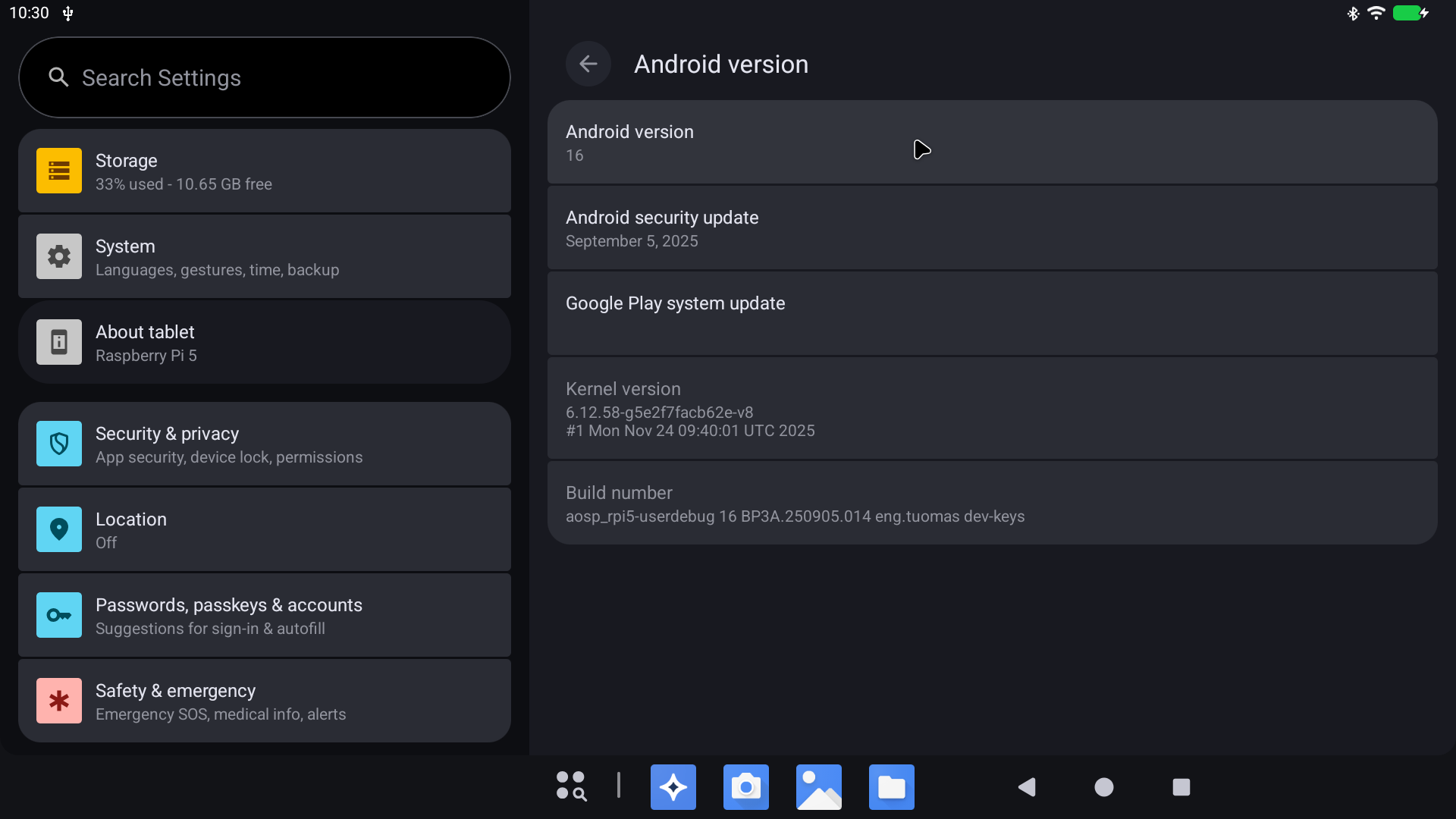
Do not mirror my builds! Please post a link to this page instead.
AOSP16-20251204-KonstaKANG-rpi5.zip
sha256:23975bece15fd42fa79d6f8a375d32d171449b8b82013bcdcb0fca19b5ed4070
Note! It’s not possible to OTA update from builds older than 20251124. Clean installation is required!
AOSP16-20251204-KonstaKANG-rpi5-ota.zip (TWRP flashable OTA package)
sha256:467158361ba1c984571ec9289ed5f04c2670933c730253abc83284ccaccd5049
Working:
- Audio (HDMI, USB microphones, bluetooth speakers/headphones, etc)
- Audio DAC (using GPIO DACs e.g. Hifiberry DAC+)
- Bluetooth (and bluetooth tethering)
- Camera (using official Pi camera modules & UVC USB webcams)
- GPIO
- GPS (using external USB modules e.g. U-Blox 7)
- Ethernet
- Hardware accelerated graphics (V3D, OpenGL & Vulkan)
- Hardware video decoding (H.265 decoding)
- HDMI display (and HDMI-CEC)
- I2C
- IR remotes (using external GPIO IR modules e.g. TSOP4838)
- Power button
- RTC
- Sensors (using external GPIO I2C modules e.g. MPU6050, LSM6DS3, LSM303DLHC, BME280/BMP280, and APDS9930 accelerometer, gyroscope, magnetometer, temperature, pressure, humidity, ambient light, and proximity)
- Serial console (using external GPIO serial console adapters e.g. PL2303)
- SPI
- Touchscreen/multi-touch (official 7” touchscreen, USB touchscreens, Waveshare SPI touchscreens)
- USB (mouse, keyboard, storage, etc)
- USB-C (ADB, MTP, PTP, USB tethering)
- Wifi (and wifi tethering)
Issues:
- Various issues with CSI camera modules
- SELinux is in permissive mode
- Encrypting userdata is not supported
- and more…
Sources:
How to install:
- Follow the official Raspberry Pi instructions for writing the image to the SD card.
How to update:
You can also update to newer builds using TWRP flashable OTA packages.
Note! It’s not possible to OTA update from builds older than 20251124. Clean installation is required!
- Download AOSP16-xxxxxxxx-KonstaKANG-rpi5-ota.zip and save it to your device’s internal storage or use an external USB drive
- Boot to TWRP recovery (see FAQ)
- Install AOSP16-xxxxxxxx-KonstaKANG-rpi5-ota.zip from your selected storage
- (Flash GApps/Magisk/Widevine/other add-ons you had previously installed)
- Boot out of recovery (see FAQ)
Changes that are backed up and restored flashing OTAs:
- Device specific settings changed using Settings -> System -> Raspberry Pi settings
- Manual changes to /boot/resolution.txt and /boot/rc_keymap.txt
- USB boot configuration in /boot/config.txt
- User specific options in /boot/config_user.txt
Changes that are not backed up and restored flashing OTAs:
- Manual changes to /boot/config.txt (and any other manual changes to /boot partition)
- GApps
- Magisk
- Widevine
FAQ:
Q: How to find several Raspberry Pi specific settings options?
A: Settings -> System -> Raspberry Pi settings
Most options in this menu require you to reboot your device for the setting to take effect.
Q: How to enable developer options?
A: Settings -> About tablet -> Click ‘Build number’ several times.
Q: How to enable root access?
A: You can have root access via ADB after adb root, SSH (see FAQ below), or serial console. It is also possible to install Magisk following instructions later in the FAQ.
Q: My display is not working. I can only see the rainbow screen but no Android boot animation. What should I do?
A: This build only supports HDMI displays that report supported resolutions using EDID. 1920x1080 resolution is used by default with this build. You can change value in /boot/resolution.txt to use a different resolution that your display supports. Removing /boot/resolution.txt will use the preferred resolution of your display.
Q: How to use DSI touchscreen displays?
A: You can enable required configurations using a settings option found in Settings -> System -> Raspberry Pi settings -> DSI display. You need to disconnect any HDMI display when using the DSI display.
Q: How to use desktop mode on primary display?
A: Enable Settings -> System -> Raspberry Pi settings -> Desktop mode and reboot the device.
Q: Is there any keyboard shortcuts for Android system functions?
A: Following keyboard keys work as Android buttons: F1 = Home, F2 = Back, F3 = Multi-tasking, F4 = Menu, F5 = Power, F11 = Volume down, and F12 = Volume up.
Q: How to create a DIY hardware power button?
A: You can send power button events by connecting GPIO21 to ground.
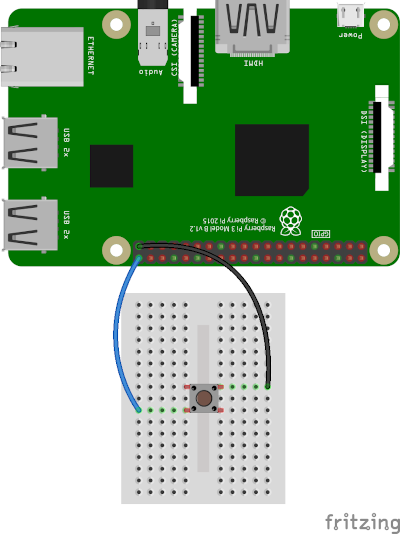
You can enable the feature by using a settings option found in Settings -> System -> Raspberry Pi settings -> Power button.
You can also use the DIY power button to boot the device to TWRP recovery. Press and hold the button while powering on the device until you see the TWRP screen.
Q: How to use IR remote?
A: You can enable the feature by using a settings option found in Settings -> System -> Raspberry Pi settings -> Infrared remote.
You can place a keymap for your remote as /boot/rc_keymap.txt to be automatically loaded on boot. See available keymaps for reference. You can use ir-keytable -p all -t in rooted shell to figure out the keycodes for the remote you’re using.
Q: How to use SSH?
A: You can start/stop the built-in SSH server by using a settings option found in Settings -> System -> Raspberry Pi settings -> SSH.
Android doesn’t have user accounts with passwords so key based authentication is used with SSH instead. Necessary keys are generated on the first boot and you need to pull the private key to your computer (or alternatively you can push your own previously generated keys to the device). See Settings -> About tablet -> IP address for your device’s IP address (192.168.0.100 is assumed here). Enable Settings -> System -> Raspberry Pi settings -> ADB.
adb connect 192.168.0.100
adb root
adb pull /data/ssh/ssh_host_ed25519_key my_private_key
chmod 600 my_private_key
ssh -i my_private_key root@192.168.0.100
It’s recommended to disable adb after this.
Q: How to boot from USB or NVME device?
A:
- Write image to your USB/NVME storage device as above
- Mount the USB/NVME device on your computer and modify /boot/config.txt under ‘Boot device’ section (e.g. for USB boot):
#dtoverlay=android-sdcard dtoverlay=android-usb #dtoverlay=android-nvme - Connect the USB/NVME device to your Raspberry Pi, remove any sdcard, and boot
Q: How to boot to TWRP recovery?
A: AOSP doesn’t have reboot to recovery option in power menu. You can boot to TWRP by selecting option in Settings -> System -> Raspberry Pi settings -> Reboot to recovery.
If mouse cursor doesn’t appear, try replugging your mouse.
Booting to TWRP is not supported with DSI displays. HDMI display must be used when booting to recovery mode.
Q: How to boot out of TWRP recovery?
A: You can boot out of recovery by simply selecting reboot to system option in TWRP.
Q: My device keeps booting into TWRP recovery. What should I do?
A: If you have GPIO21 connected to ground (or if you have something drawing power from it) your device will always boot to TWRP recovery (see FAQ section about DIY power button). If you have a hardware failure on GPIO21 you can edit /boot/config.txt to remove the GPIO21 related logic (see ‘Ramdisk’ and ‘Graphics acceleration’ sections).
Q: Settings -> Storage shows total system size of 15.5 GB. There’s unallocated space on my sdcard. What should I do?
A: This is a 15.5 GB image, remaining space on your sdcard will remain unallocated.
- Download KonstaKANG-rpi-resize.zip (sha256:6e84ccce8682db905668e337d51f986b76d58cfb91b57edd7fd118f4c52ade92) and save it to your device’s internal storage or use an external USB drive
- Boot to TWRP recovery (see FAQ)
- Install KonstaKANG-rpi-resize.zip from your selected storage
- Boot out of recovery (see FAQ)
Q: How to install Widevine L3?
A:
- Download KonstaKANG-rpi-widevine-16.zip (sha256:454026bf89e1755fef03c428e52980a9200afb4655b1b35da07124492745504a) and save it to your device’s internal storage or use an external USB drive
- Boot to TWRP recovery (see FAQ)
- Install KonstaKANG-rpi-widevine-16.zip from your selected storage
- Boot out of recovery (see FAQ)
Q: How to install Magisk?
A:
- Download KonstaKANG-rpi-magisk-v30.7.zip (sha256:8f7dfab3653107cc76b5ff050f01acb04d939e059d86535f82cc305635b031fc) and save it to your device’s internal storage or use an external USB drive
- Download Magisk-v30.7.apk
- Boot to TWRP recovery (see FAQ)
- Install KonstaKANG-rpi-magisk-v30.7.zip from your selected storage
- Boot out of recovery (see FAQ)
- Install Magisk-v30.7.apk using Android’s built-in file manager/
adb install/etc. - Ignore suggestions to reinstall Magisk within the app and/or warning about the installation method
Q: How to install Google apps?
A:
- Download GApps-16.0-arm64-xxxxxxxx.zip and save it to your device’s internal storage or use an external USB drive
- Boot to TWRP recovery (see FAQ)
- Install GApps-16.0-arm64-xxxxxxxx.zip from your selected storage
- Wipe -> Factory reset!
- Boot out of recovery (see FAQ)
- Settings -> Google -> Sign in
- Register Google Services Framework Android ID with the same Google account you’ve signed in
- Wait for a while and reboot the device until you’ve signed into your Google account successfully
4.12. changelog:
- update to latest AOSP release (Android 16 QPR2 - android-16.0.0_r4)
- convert Mesa EGL to APEX
- update to libcamera v0.6.0, libpisp v1.3.0
- update to FFmpeg 8.0.1
- update to Mesa 25.3.1
- update to Linux 6.12.60 kernel and patch known vulnerabilities (CVE-xxxx-xxxx, and more)
- Android security patch level: 5 December 2025
24.11. changelog:
- add metadata partition for new aconfig storage
- add support for effects with the new audio HAL
- update Raspberry Pi settings to Material 3 Expressive
- update to TWRP 3.7.0_11-3-KonstaKANG
- update to Linux 6.12.58 kernel and patch known vulnerabilities (CVE-xxxx-xxxx, and more)
17.11. changelog:
- update to latest AOSP release (Android 16 QPR1 - android-16.0.0_r3)
- add option to enable desktop mode on primary display
- add options to set GPS serial device and baud rate
- remove built-in VNC server (no longer maintainable due to upstream changes)
- update to Mesa 25.3.0
- Android security patch level: 5 September 2025
6.11. changelog:
- update to AIDL audio HAL
- convert Mesa makefiles to soong blueprint (ninja-to-soong)
- convert libcamera makefiles to soong blueprint (ninja-to-soong)
- convert libcamera HAL to AIDL (thanks to Mattijs Korpershoek)
- convert ffmpeg_codec2 HAL to APEX
- convert libcamera, external camera, and minigbm gralloc HALs to APEX
- convert vulkan to APEX
- all HALs that are part of Raspberry Vanilla have been updated to AIDL and packaged into APEX! \o/
- fix kernel DRM driver issue with YVU formats (upstream)
- fix kernel wifi driver issue with ANQP/Hotspot 2.0 networks (upstream)
- disable HDR
- read model from device tree
- replace WebView Browser Tester with Jelly browser
- update to FFmpeg 8.0
- update to libcamera v0.5.2
- update to v4l-utils 1.32.0
- update to Mesa 25.2.6
- update to Linux 6.12.53 kernel and patch known vulnerabilities (CVE-xxxx-xxxx, and more)
17.6. changelog:
- initial release (android-16.0.0_r1)
- Mesa 25.1.3
- FFmpeg 7.1.1, AOSP dav1d 1.5.0
- libcamera master/v0.5.1, libpisp v1.2.1
- alsa-lib/alsa-utils v1.2.14
- v4l-utils master/1.29.0
- TWRP 3.7.0_11-2-KonstaKANG
- Linux 6.12.30 kernel
- Android security patch level: 5 June 2025
Previous builds: